
 Svenska
 English (US)
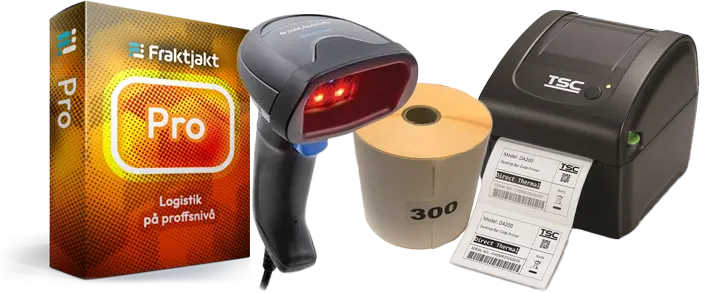
With a hand scanner, you can streamline your picking and packing process by scanning the picking list barcode when the order is finished picking.
When the barcode is scanned, the printing of the associated shipping documents is triggered directly at the picking station.
You don't have to sort the shipping documents and avoid problems with the printouts getting mixed up with other shipments.
What is needed
- A hand scanner that supports HID mode (Human Interface Device) and Suffix Enter.
- Print Assistant activated in Fraktjakt.
- Pick lists configured for barcode (not QR code).
Step 1 - Configure the hand scanner
Most hand scanners work with Fraktjakt, provided they are set to HID mode and Suffix Enter. In HID mode, the scanner works like a regular keyboard and sends the scanned information directly to the computer. HID mode is the default on most hand scanners. If you are unsure, you can read in the scanner's manual how to check or change the setting.Suffix Enter means that the scanner will automatically apply an enter after scanned numbers.
Test that the scanner is working
The easiest way to check that the scanner is connected correctly is to: Open a text program, such as Notes, Notepad or Word, and scan a barcode. If the barcode content is displayed as text in the document and the cursor is moved to a new row afterwards, the scanner is correctly installed and ready to use with Fraktjakt.Step 2 - Activate Print Assistant
For automatic printing, Print Assistant must be installed and activated in Fraktjakt and set at the same time so that only the picking list is printed directly when the order is created. Other shipping documents will now wait for scanning and will only be printed when the picking list barcode has been scanned.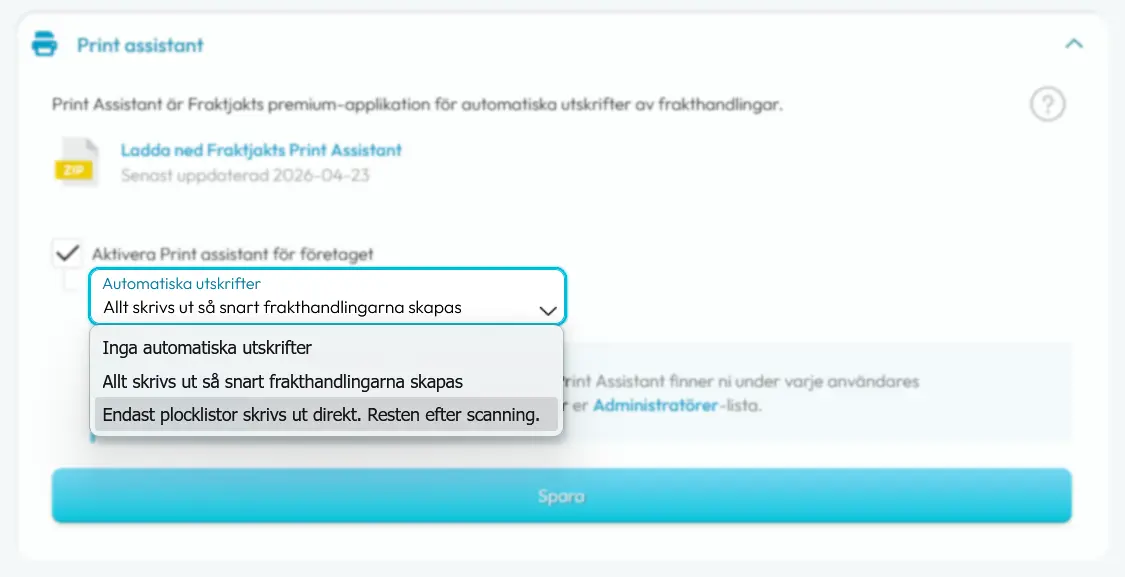
Step 3 - Configure the print settings
Enable printing of Picking Lists under your company settings and set the barcode type from QR code to "Barcode".Step 4 - Start scanning
Start Print Assistant on the computer you connected the scanner to. If you have already installed and connected your account, you are ready to start scanning the next picking list.This is how the workflow works
- A new order is created.
- The picking list is automatically printed.
- The order is picked in a package.
- At the picking station, the barcode on the picking list is scanned.
- The scan triggers printing of all associated shipping documents directly at the station.




 English (US)
 Svenska